Moodle Single Sign-On (SSO) – Simplifying Access for Your Users
·

At Tech Learning, we specialize in Moodle Single Sign On (SSO) integration-a secure and efficient way to streamline user logins across your Moodle platform. With Single Sign-On (SSO), users can access Moodle and other systems using a single set of credentials, improving both security and user experience. Whether you’re a school, university, or enterprise, SSO makes Moodle access seamless.
💡 What is Single Sign-On (SSO)?
Single Sign-On (SSO) is a secure authentication process that enables users to access multiple systems with one set of login credentials. For example, with SSO configured, a user can log into Moodle using their existing Microsoft or Google account-without needing to remember another username and password.
SSO improves user experience and enhances security by reducing password fatigue and minimizing attack surfaces.
🔧 Authentication Methods in Moodle
Moodle supports a wide range of authentication methods, including:
-
Manual login (default)
-
Email-based self-registration
-
OAuth2 (Google, Facebook, etc.)
-
LDAP
-
SAML2
-
OpenID Connect
You can manage these methods by navigating to:Site administration > Plugins > Authentication > Manage authentication
caption id=”attachment_393″ align=”alignnone” width=”300″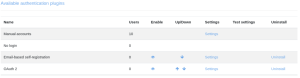 moodle-authentication-plugins[/caption]
From this page, admins can enable, disable, and prioritize different login methods, as well as view how many users are assigned to each.
🔐 SAML2 Authentication for Moodle
SAML2 is one of the most widely used SSO protocols in the Moodle community. It enables secure communication between your Moodle site and your Identity Provider (IdP) without needing extra installations or services.
✅ Why Choose SAML2?
-
No external software required
-
Full configuration is done within Moodle
-
Works with major IdPs (e.g., ADFS, Okta, Azure AD)
Access SAML2 settings in Moodle:Site administration > Plugins > Authentication > SAML2
caption id=”attachment_470″ align=”alignnone” width=”300″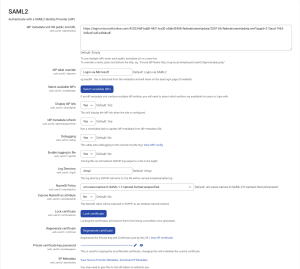 Moodle SAML2 settings[/caption]
🔗 Learn more about the SAML2 plugin on Moodle.org
🔄 OpenID Connect Authentication
OpenID Connect is another powerful SSO option, particularly for organizations using Microsoft 365 and Azure Active Directory. With this plugin, users can sign into Moodle using their Microsoft credentials.
✅ Benefits of OpenID Connect:
-
Seamless login with Microsoft 365 accounts
-
Auto-creation of Moodle accounts for new users
-
Easy switching from existing Moodle accounts
Access OpenID Connect settings in Moodle:Site administration > Plugins > Authentication > OpenID Connect
caption id=”attachment_395″ align=”alignnone” width=”300″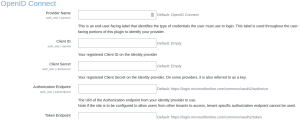 Moodle-Open-ID-Connect[/caption]
🔗 More on Moodle’s OAuth2 authentication
🔗 Google OAuth2 Plugin
👤 Assigning Authentication Methods to Users
When creating or editing a user account in Moodle, you can select their authentication method from a dropdown menu. For example, if OpenID Connect is enabled, users will see a dedicated login button on the Moodle login page.
🚀 Why Use Tech Learning for SSO Integration?
We don’t just install plugins-we ensure a full, secure, and tailored integration of SSO into your Moodle environment. Our team handles:
-
Plugin setup and configuration
-
Integration with your existing identity provider
-
Custom login workflows
-
Testing and training
Let us help you simplify user access and enhance your Moodle security today.
caption id=”attachment_396″ align=”alignnone” width=”300″ Moodle-OpenID-Connect-authentication[/caption]
Get in touch with us to learn how SSO can streamline your Moodle access and reduce support overhead.
📞 Contact Us
📧 support@techlearning.com.au
🌐 www.techlearning.com.au/contact
Choosing between SAML 2.0 and OAuth 2 / OpenID Connect
Both work well with Moodle, and the right answer usually depends on what your identity provider does best rather than on the protocols themselves. SAML 2.0 is the long-established choice in education and integrates cleanly with institutional identity providers. OpenID Connect tends to be simpler to configure against Microsoft Entra ID and Google Workspace, and is easier to debug because the tokens are readable.
If your organisation already federates other applications one way, follow that. Consistency with your existing identity estate is worth more than any protocol-level difference.
The configuration details that get missed
- Attribute mapping. Decide exactly which directory attribute becomes the Moodle username, and make it something stable. Mapping to email address is common and causes problems the first time someone changes their name.
- Account lifecycle. SSO creates accounts smoothly. What happens when someone leaves is the part that gets skipped – and access that does not end is the finding an auditor will care about.
- An administrator fallback. Keep one manual administrator account that does not depend on the identity provider. When SSO misconfiguration locks everyone out – and it will, once – this is what saves you from a database edit at midnight.
- Certificate expiry. SAML signing certificates expire, typically quietly, and SSO stops working on a date nobody has in a calendar. Monitor it like any other certificate.
- Existing accounts. If learners already have manual Moodle accounts, decide how those link to their new SSO identity before go-live, or you will create duplicates for everyone.
Testing it properly
Test with a real account that is not yours, in a browser with no existing session, from outside your network. Administrator accounts routinely have exceptions that hide problems. Then test the failure path: what does a learner see when their account is disabled, and is the message something they can act on?
What SSO does not solve
Single sign-on authenticates people. It does not decide what they can see – that is roles and capabilities, configured separately in Moodle. Nor does it enrol anyone in a course; that is either manual, cohort-driven, or synced from another system. Expecting SSO to handle enrolment is a common and expensive misunderstanding.
Getting SSO configured properly
The pieces people miss are the same every time: attribute mapping between your directory and Moodle profile fields, what happens to accounts when someone leaves, and a documented fallback so a locked-out administrator can still get in without a database edit.
We configure SSO against Microsoft Entra ID, Okta, Google Workspace or any SAML 2.0 or OAuth 2 provider. Access that genuinely ends when someone leaves is the part that matters most and gets tested least.